Viewing the difference between two files on the Linux command line
Hello dear friends.
In this post I'm here with another really neat Linux tool. I hope you enjoy it.
It may have happened to you that you want to see the difference between two files. There are various tools you can use for this. Many tools have a graphical user interface, and you can easily compare the differences between files using the interface. Among these tools is the well-known Meld, which has many fans.
But in this post we won't deal with these graphical tools; we want to talk about a command-line tool.
This tool comes in handy when, for example, we want to see the difference between two files on a server, and the server has no graphical desktop, so we can't use tools like Meld there. That's why command-line tools are very useful to us. Of course, we can also use these command-line tools on our own personal computer.
Now I'll introduce the diff tool, which is installed by default on most Linux systems and which you can use easily.
Suppose we have two files called file1.cpp and file2.cpp, and we want to find the difference between these two files from the command line.
The contents of file1.cpp are:
#include <iostream>

int main() {
    std::cout << "Hello World!" << std::endl;
    std::cout << "I'm from first file." << std::endl;
    return 0;
}
And the contents of file2.cpp are:
#include <iostream>

int main() {
    std::cout << "Hello World!" << std::endl;
    std::cout << "I'm from second file." << std::endl;
    return 0;
}
Now we want to find the difference between these two files using the diff tool.
To find the difference between these two files, we can simply use the following command:
diff ./file1.cpp ./file2.cpp
In the picture below we can see the output of this command:
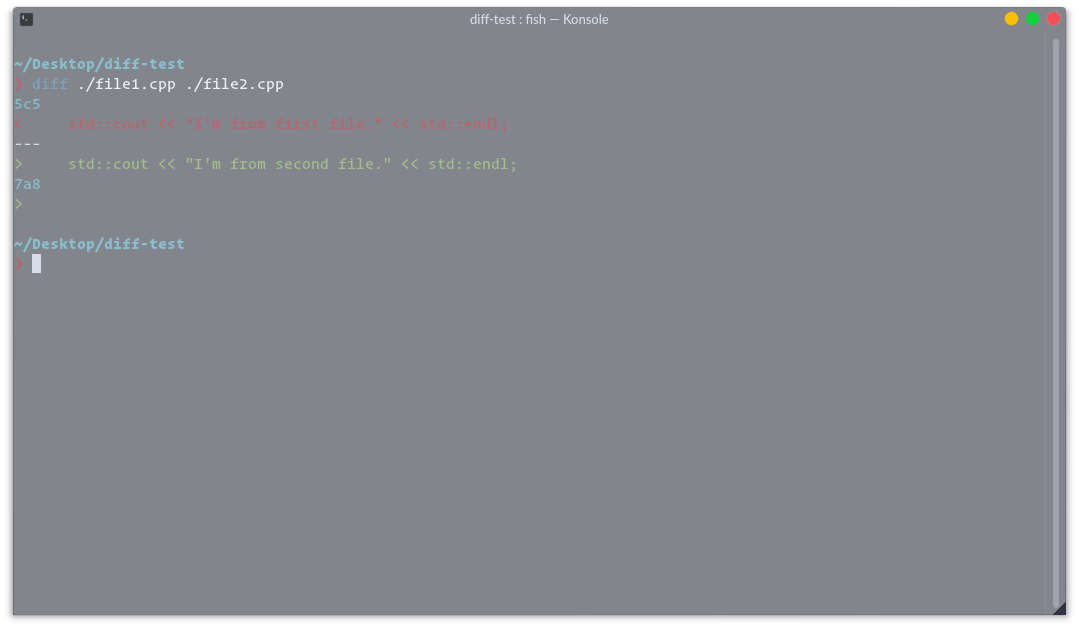
As we can see, the difference between the two files has been shown. The red line is a line that was removed and the green line is a line that was added. The diff tool has more options that can be used too. For example, to see the differences between the files in unified form, we can use the -u option, like the picture below:
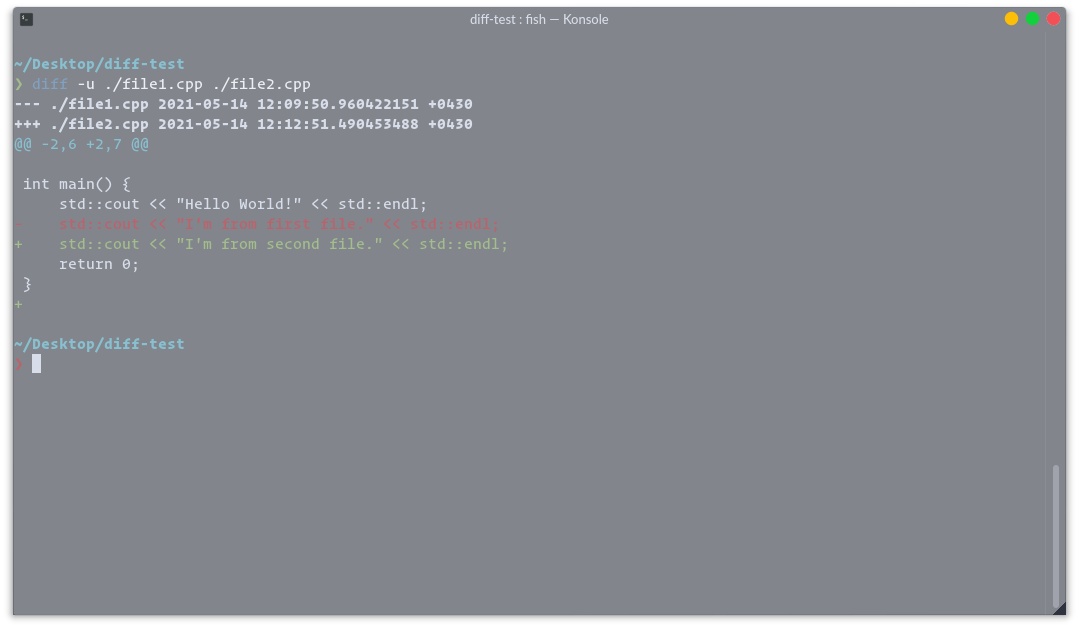
As you can see in the picture, the differences between the files are shown one under the other and are no longer separate. Another option is -y. With this option the files can be compared side by side. In the picture below you can see the output of this option too:
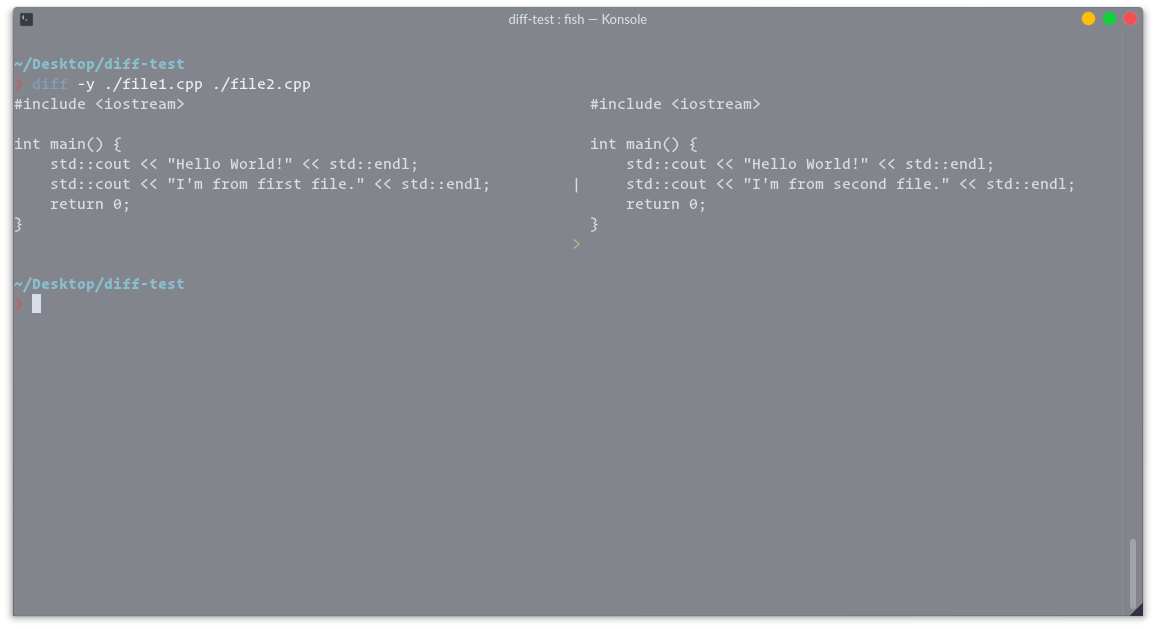
In the picture above we see that the files have been placed side by side, and the part that changed is marked with a pipe symbol.
As we've seen, the diff tool is very powerful while being simple, and it can help us in many ways. For more information about diff's options, you can use the diff --help command.
I hope you enjoyed this post.