Updating the Galaxy Tab P1000 to Android Marshmallow
Updated on May 7, 2021
ROM file links made direct
In this post you'll find a complete, comprehensive guide that teaches you how to install the Marshmallow operating system on the Galaxy Tab P1000.
Because the installation process is long, I've put it in the rest of the post.
I recommend reading this entire guide at least twice first
Let me give my disclaimer first: you're doing this at your own risk, and I take no responsibility for your tab getting damaged (the chance is 0 percent if you do all the steps correctly).
Be sure to back up your data and settings with Titanium Backup, because you might lose your files.
Well, let's get to the point:
First we need to prepare the prerequisites: (the guide to preparing all the prerequisites is in this same post)
First of all, Samsung Kies must be installed on your computer.
USB debugging must be enabled in the tablet's settings.
Make sure your operating system version is Gingerbread 2.3.3.
The device must be rooted.
Clock Work Mode Recovery, or CWM for short, must be installed on it.
1. Downloading the required drivers:
For this, you can go to samsung.com and download and install Samsung Kies from its support section. It doesn't matter whether this program is running; what matters is the drivers it installs.
There's also another way for friends who have Windows 7 to get the required drivers without installing Kies:
----------------
Turn on the internet. Disable USB debugging on the tablet and connect it to the computer. A window opens asking whether it can download updates from Windows Update; you should confirm. After a while it downloads and installs the drivers and lets you know. Now disconnect the tablet, enable USB debugging and connect it again. The same thing happens again.
Now disconnect the tablet and turn it off. Hold the volume down and power buttons together until it goes into Downloading mode. When you see the picture below, connect the tablet to the computer again and some more drivers get installed.
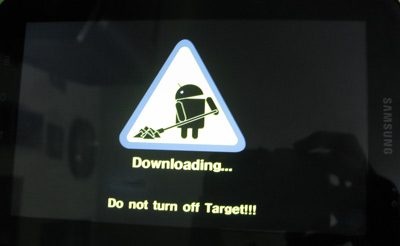
This way you can install the tablet's drivers without needing Kies.
--------------------------
2. Enabling USB debugging:
For this you need to go to the settings and enable USB debugging.
3. Having the Gingerbread operating system, version 2.3.3:
Well, if your operating system isn't 2.3.3, go to the end of this post and upgrade it. (At the end of this post, in the "Unbrick" section, the process of installing 2.3.3 is explained)
4 and 5. Rooting and installing Clock Work Mode Recovery:
Note: if you came to this post to root your tablet, we do that in this section, and it's one of the easiest ways to root the Galaxy Tab.
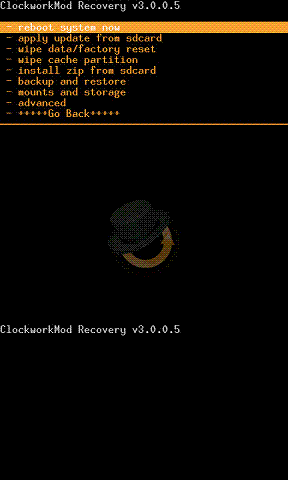
Well, if you have operating system 2.3.3 and have enabled USB debugging, turn off the device and hold the volume up and power buttons together until it goes into recovery mode. If the screen that opens says Clock Work Mode Recovery somewhere at the top or bottom, CWM is installed on your tab and it's rooted, and if it says Samsung or something like that, it isn't installed. Look at the picture below: both the top and bottom of the screen say Clock Work Mode Recovery, so the tablet is rooted and CWM is installed on it:
To install CWM, download this file and also download Odin.
Well, now you need to connect the tab to the computer. Before doing that, turn off the tab and press the volume down and power buttons together until a screen appears on it saying Downloading..., then connect the tab to the computer and run Odin. In Odin, click the PDA button, give it the path of the file you downloaded, and don't touch anything else.
When it's done, the program should look like this:
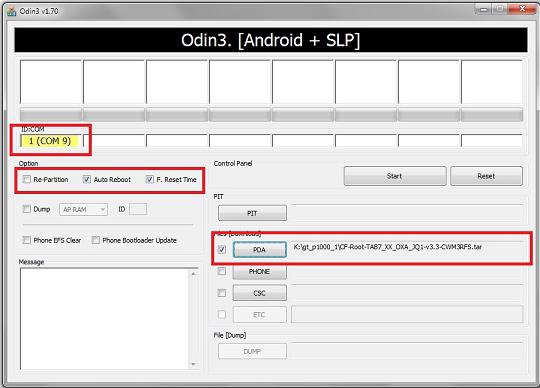
Well, now click the Start button and wait. After a few moments the first box says PASS! Then disconnect the tab.
Now your tab is rooted and CWM is installed on it.
This is where rooting the tablet ends!
So far, we've made the tablet ready to welcome delicious Android ROMs!! Now in the section below you'll see the general guide to installing a ROM. Once you've learned how to do this, you can choose and install any other ROMs available on the internet.
Guide to installing the Marshmallow operating system, version 6
Note: we need to change the recovery from CWM to TWRP, that is, Team Win Recovery Project, so we can install version 6 of the operating system.
Previously, installing TWRP through Odin was possible, but unfortunately some friends recently pointed out in the comments that TWRP no longer supports the Galaxy Tab P1000. Because of this, installing TWRP gets a little harder, and to install TWRP we first need to install the Omni ROM so TWRP gets installed along with it.
To install OmniROM, you can download its file from the link below and install it through CWM:
Download the OmniROM installation file for the Galaxy Tab P100 - Mirror link
Also, for rooting you need to install SuperSU through CWM - Mirror link
Now that you've installed TWRP, we can go ahead and install Android 6.
You need to download two files:
1. The latest version of the operating system file - Mirror link
2. The latest version of the default apps file(On this page you can download the file that matches your operating system by choosing the available options. The link I've put has the options for the Marshmallow ROM and the Galaxy Tab P1000 hardware selected by default, which are: ARM platform, Android 6.0 and the nano variant. To download the file, click the circular button at the bottom left)
Make sure the files download correctly, and be sure to test them with WinRAR; if they're corrupted, download them again.
Don't forget the backup!
Well, now connect the tablet to the computer and copy these two files to the internal storage. After doing this, say goodbye to the tab and turn it off. To be extra sure the tablet works properly, take the SIM card out of it and do the following.
Hold the volume up and power keys together to enter TWRP. Now you can move up and down with touch or the volume keys, and select with the power or home key. Do this part of the work carefully and step by step:
Select Format the system and confirm.
Select Format data and confirm.
Select Format cache and confirm.
Select wipe data/factory reset and confirm.
Select Wipe Cache Partition and confirm.
Select Wipe Dalvik Cache and confirm.
Well, now select install zip from sdcard and choose the operating system file.
Three things may happen:
1. The tablet starts updating
2. The tablet restarts and the logo changes
3. The tablet restarts over and over (that is, after it restarts, it restarts again. >>This is called a BootLOOP<<)
If the second case happens, select install zip from sdcard again and choose the operating system file again.
If the third case happens, turn it off by holding the power key for eight seconds. After it turns off, go back into recovery by holding the volume up and power keys, select wipe data/factory reset and confirm, then select install zip from sdcard again and choose the operating system file again.
This way the tab starts updating. When it's done, select install zip from sdcard again and this time choose the other file, the default apps I mentioned.
I recommend that after the ROM installation finishes, you run wipe data/factory reset, Wipe Cache Partition and Wipe Dalvik Cache one more time.
When finished, select Go Back and then select reboot system now. Now your tablet has turned into Marshmallow and will boot up in a few minutes; keep in mind that the first boot takes a little while.
Congratulations, you've now installed Android Marshmallow on your tablet! I hope you enjoy it.
Below you can watch the video tutorial on installing the ROM that I made:
Video tutorial on installing the Marshmallow operating system on the Galaxy Tab P1000
Complete guide to backing up with Titanium Backup
Guide to using the Google Play Store and other sanctioned and filtered Android apps (in Persian)
Note: because unfortunately one of our friends' tablets got bricked, I've also added a guide to unbricking. (We're glad we were able to help them bring the tablet back)
Video tutorial on unbricking, or installing operating system 2.3.3
First a short explanation: Brick is an English word, and if your Android device gets bricked, it becomes as hard as a brick and won't turn on, won't go into recovery mode, and won't go into downloading mode. And a well-known sign, which you can see here, appears on the screen:

There are two kinds of bricking, good and bad.
In the good kind, you can revive the device by flashing and installing a ROM, but in the bad kind that isn't possible, and the device has to be JTAGged, as they say, with special tools and technology. In this section I've explained unbricking the good kind! For this you don't need to do anything special; you just need to install the Gingerbread 2.3.3 operating system! As simple as that.
Unbricking is no different from installing the official 2.3.3 operating system
First make sure Samsung Kies is installed on your computer.
Download Odin and install it on your computer.
Download the operating system file and extract it.
(For your convenience I've split the files into three WinRAR parts, and you can download them from Hesam's CDN servers!)
Part one: https://m.hesam.org/mobile/P1000JPJPC.part1.rar
Part two: https://m.hesam.org/mobile/P1000JPJPC.part2.rar
Part three: https://m.hesam.org/mobile/P1000JPJPC.part3.rar
- Now connect the tablet to the computer with a USB cable (with the warning sign still showing, which is normal and no problem at all (Note: if the tablet isn't bricked and you just want to install this ROM, at this point you need to put the tablet into Downloading mode by holding the volume down and power keys)) and run Odin.
The box turning yellow shows that the tablet has been recognized.
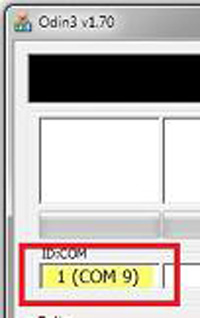
- After extracting the operating system file, we have three files:
1. CODE_P1000JPJPC_CL416731_REV03_user_low_ship.tar
2. MODEM_P1000JXJP4.tar.md5
3. CSC_P1000OJPJPD.tar.md5
Do this part of the work with full focus and care:
Now in Odin, click the PDA button and, from the files you downloaded and extracted, give it the path of file number 1. Then click the PHONE button and give it the path of file number 2. After that, click the CSC button and give it the path of file number 3, and don't touch anything else. (Make sure that during these steps the tablet is connected to the computer and the box at the top is yellow)
- Now click the START button in Odin and wait. The program starts flashing:
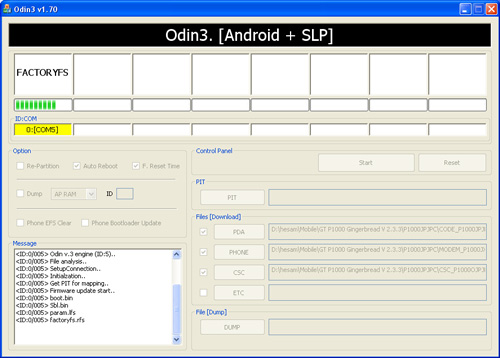
After a few minutes the tablet restarts and PASS! is written in the square box at the top, like the picture below:
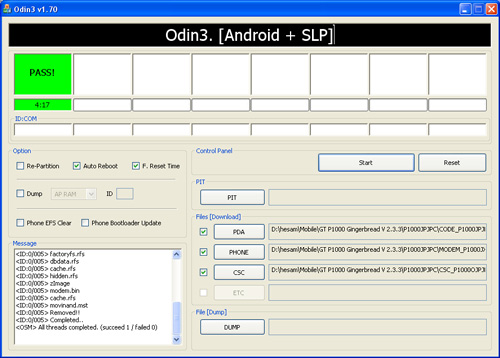
Now wait a bit for the tablet to boot and disconnect it from the computer. Congratulations, you've saved your bricked tablet. (Note that this operating system isn't rooted, and you need to do the rooting process, which is also in this post)
Very important note: If you couldn't unbrick the tablet with the method above, use a PIT file; I'll explain how to use it. A PIT file is usually useful when the operating system installation stops at the Hidden stage and the program freezes. First download the PIT file from here, here or even here! Now do the same as in the guide above and put the three operating system files in their designated places in Odin, but before clicking the Start button you need to click the PIT button in Odin and give it the path of the PIT file in the link I gave you. (There are two files in the zip file: one is Odin and the other is a file named P1_add_hidden.pit, which is the file you need to give to Odin).
After doing this, your program will look like this:
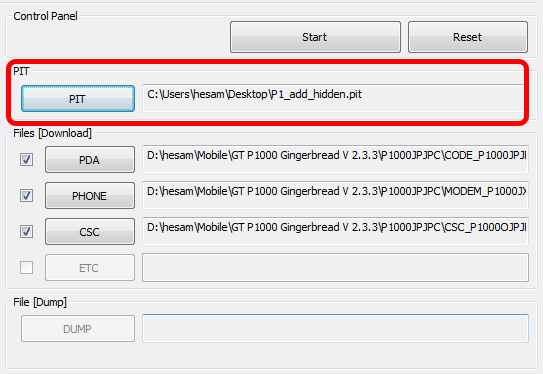
After you click the Start button, Faild! should no longer be shown. When the device restarts, if it doesn't boot properly, hold the power button for 8 seconds to turn it off and turn it on again.
Congratulations! You've brought back your bricked tablet!
Best of luck...