A complete, illustrated guide to cracking and using Titanium Backup
Hi everyone. Given the many requests from friends to post a tutorial on Titanium Backup, I obeyed and posted the tutorial. Because there are lots of pictures, I had to put the tutorial in the rest of the post, so please continue reading..
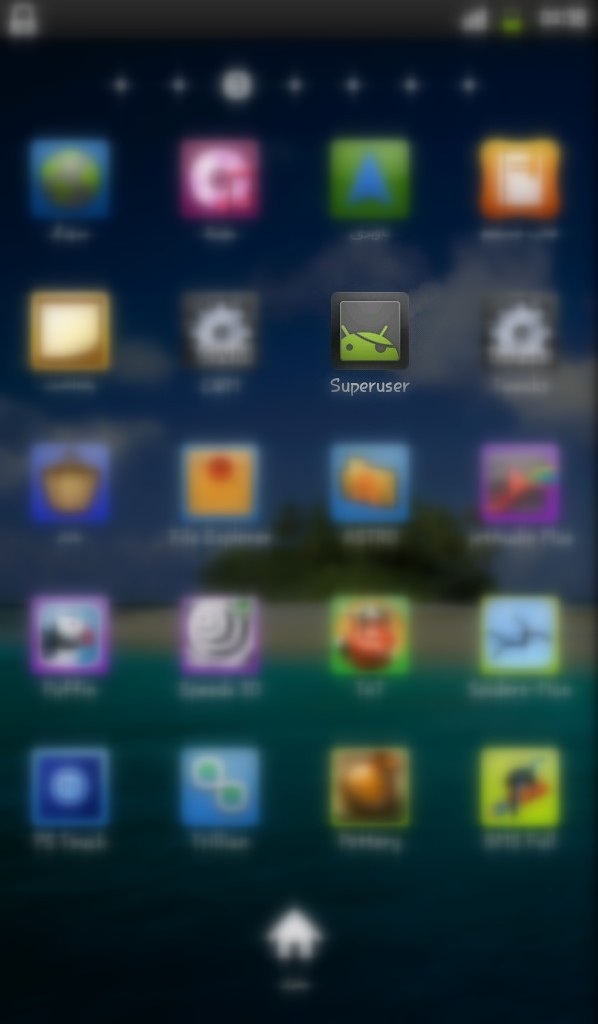
The first thing to pay attention to is that your phone must be rooted and have the Super User app, which you can see in the picture below, installed on it:
Now that you know your phone is rooted, you need to install Titanium Backup.
You can download it from the Bazaar app (an Iranian Android app store) on your phone, or from the internet:
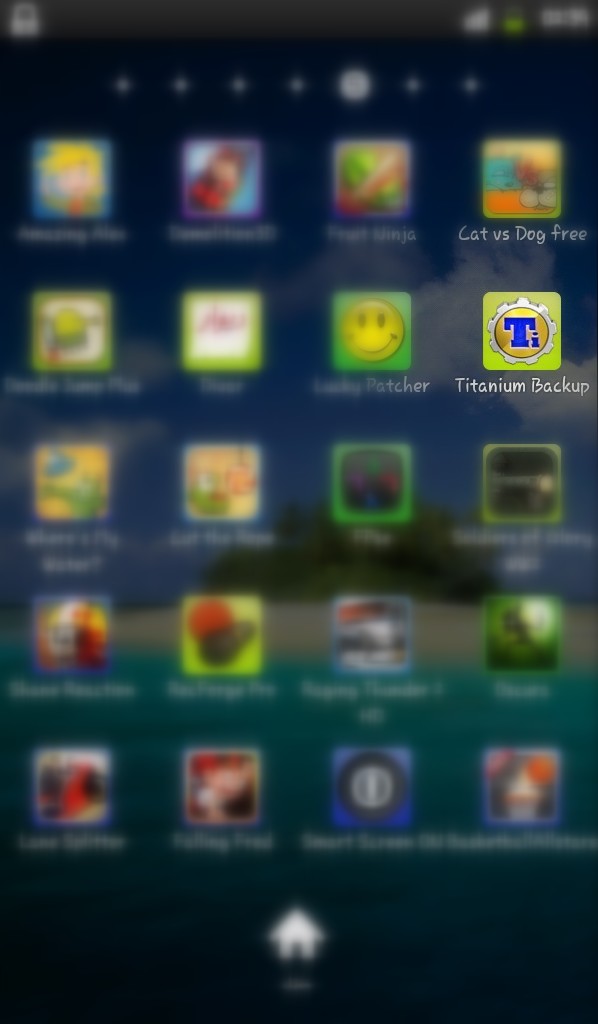
Since this program needs a crack and most of the cracks on various sites don't work, I'll also include a tutorial on cracking it.
To crack it you need to download Lucky Patcher from the internet; this one isn't on Bazaar. After downloading, install it, connect to the internet and update Lucky Patcher. The way to update is that when you run the program, it automatically tells you whether it needs an update. If no update is needed, it doesn't give you any message and everything runs normally.

After you run Lucky Patcher, you'll see that Titanium Backup is ready to be cracked and is at the top of the list:
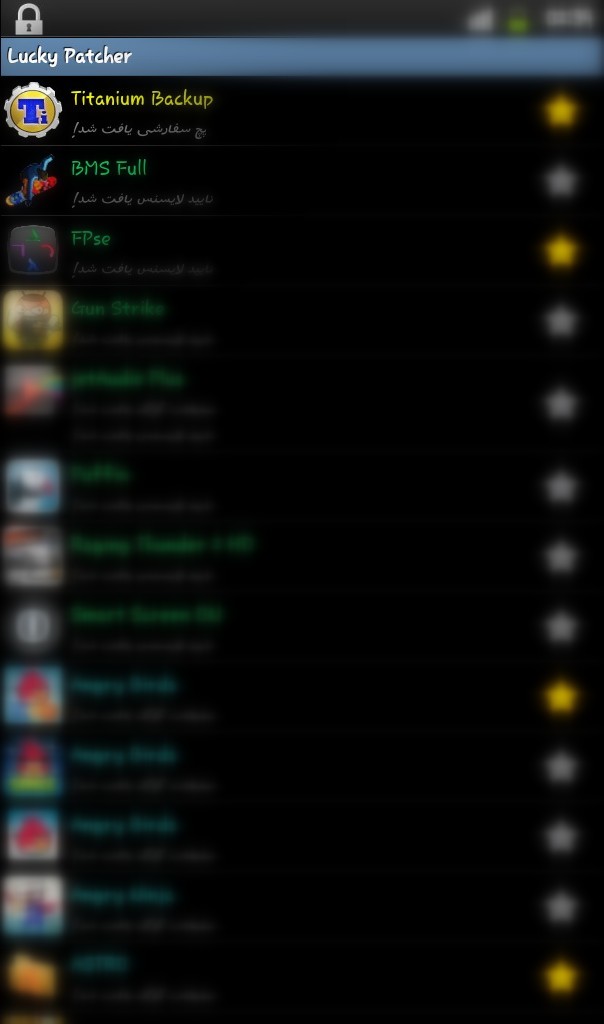
Well, now hold your finger on the Titanium Backup icon until the crack menu opens.
From the menu that opens, tap the first option, Custom Patch:

Now a menu like this opens; the options may be different. These are the kinds of cracks prepared specifically for Titanium Backup. Choose any one of them:
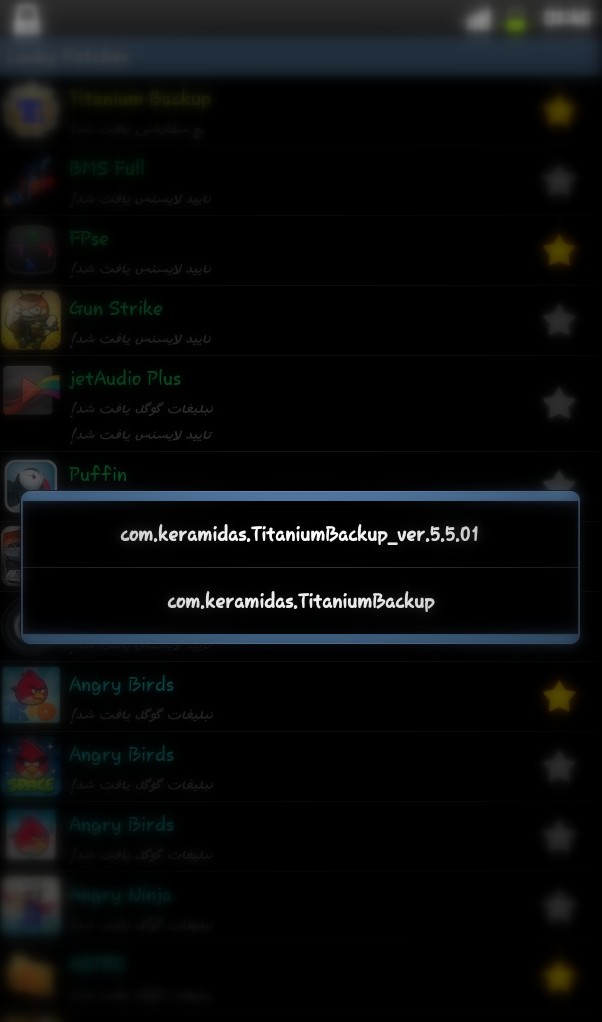
Now a menu opens that shows the percentage chance of the crack working. Ignore everything and choose the Apply button. (Nothing will harm your phone, don't worry!):
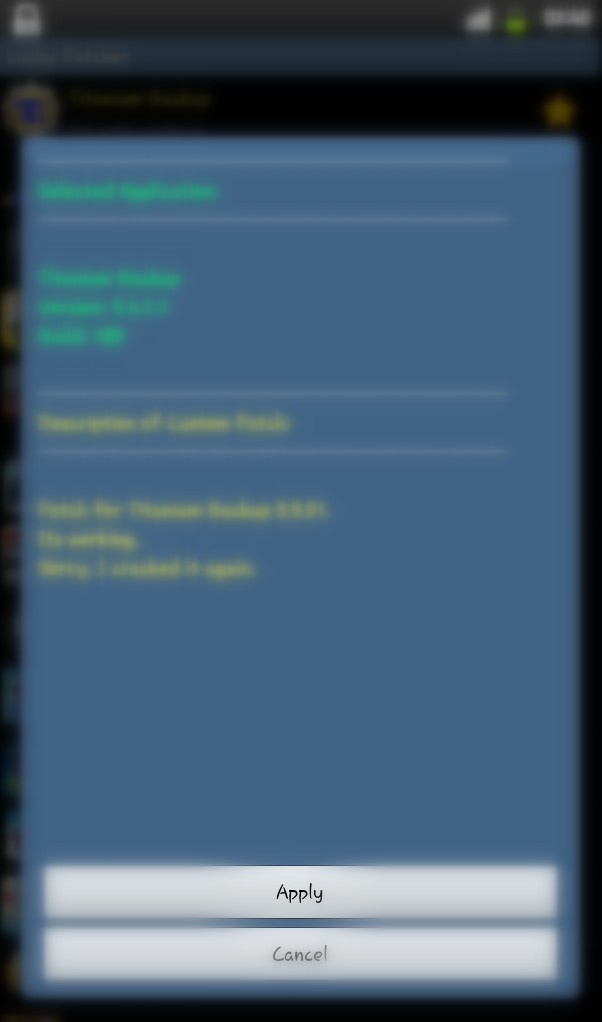
Now that you've chosen Apply, Titanium Backup gets cracked. However, you must restart your phone once for the crack to take effect. So much for cracking. Let's get to Titanium Backup itself:
In the picture below you can see the cracked program's interface:
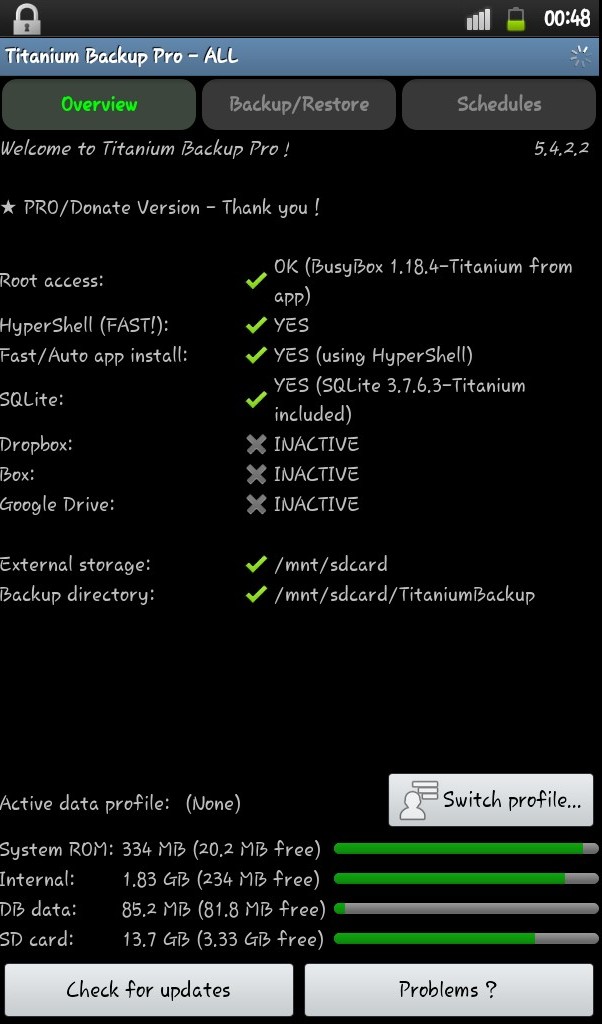
If you look at the top of the program, you'll see three buttons labeled OverView - Backup/Restore - Schedules. When the program runs, we're in the OverView section by default, which has some explanations that aren't very useful to us... Most of our work is with the other two sections.
Tap the Backup/Restore button to go to the backup and restore section:
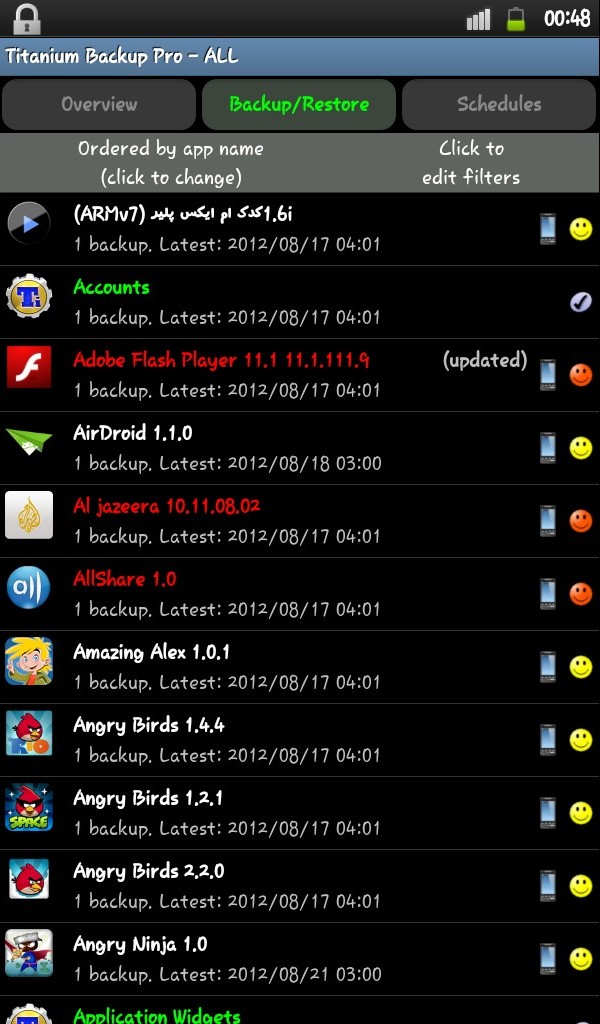
Here you can see all the user and system apps installed on your device.
Now select one of them to open a box like the one below:
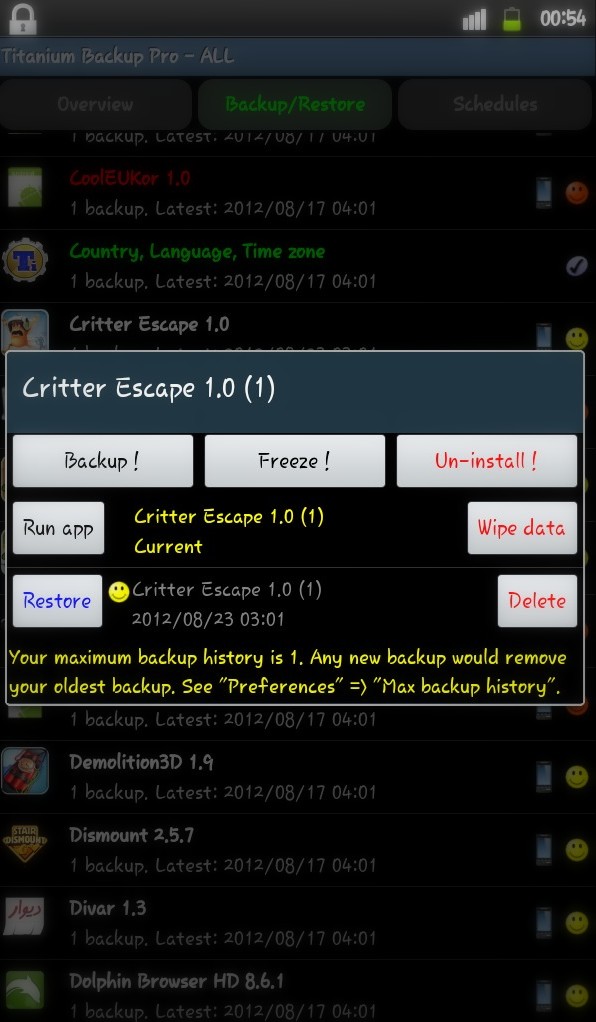
There are some very useful buttons here, and it'll definitely help to know what they do. The Un-Install button obviously removes the app, but this button has a very interesting point: with it you can remove apps that come preinstalled on your phone and can't be deleted any other way. One of the most annoying of these apps, which Samsung users know well, is Pulse, which we all suffer from having on our phones! But with this Un-Install option you can easily delete it! Important note: don't delete something if you don't know what it is, because it'll wreck your phone, keep giving force closes, and you'll have to reinstall the ROM... The Freeze button disables your app but doesn't remove it. For example, you have an app that interferes with another app and you want it stopped temporarily; you can stop it with this button, and when an app is frozen this button turns into Un-Freeze, and choosing it returns the app to normal. The Backup button, obviously, backs up this app. Now an important question?! Where do the backups go?
All backups are in the Titanium Backup folder at the root of the storage
So when you want to take the data you've backed up off the phone, copy this folder from the storage to your computer. The Wipe Data button deletes all the data the app has saved on your phone's storage. If you use this button on games, all the levels you've reached in the game are wiped and it becomes like day one. The Run App button runs the app. The Delete button deletes the existing backups of that app and doesn't touch the app itself. The Restore button brings back the latest backup of this app and replaces it; its exact date and time are written next to it. So much for the miscellaneous things Titanium can do for us... Now let's get to the main point, backing up the whole system. To do this, press your phone's menu button to see the program's menu.
Now choose Batch:
When you choose this button, you'll see the menu below:
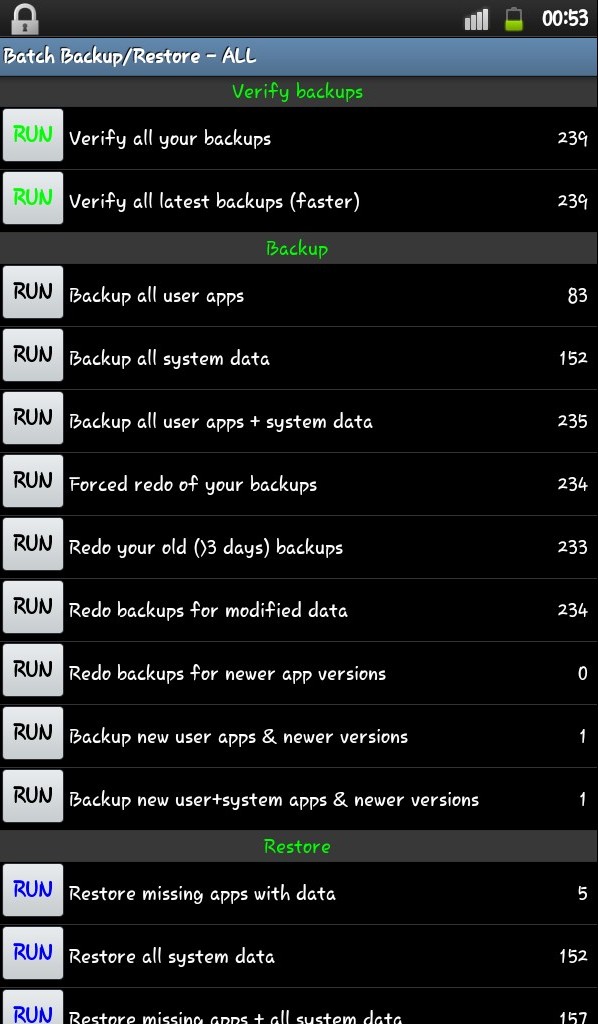
In this menu the tasks are divided into several sections, of which Backup and Restore are very useful to us; as you know, backup is used to make backups and restore is used to bring them back. To make a thorough backup of your system, tap the fifth option, Backup All User Apps + System Data.
You'll see a menu like the one below:
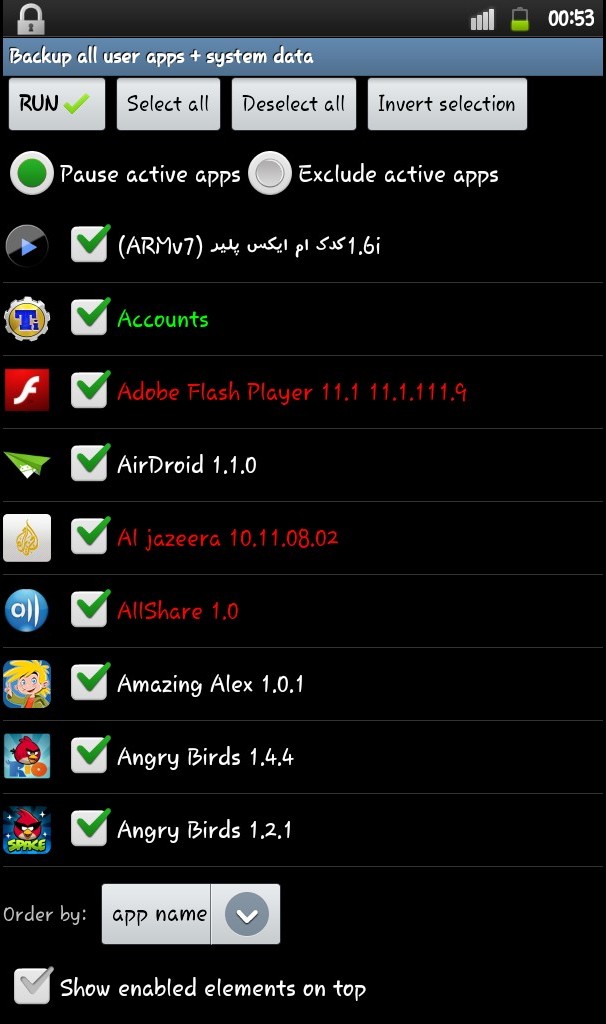
Now tap the RUN button at the top left. As you can see, your phone starts backing up. When it's finished it notifies you in the notification bar, and as I said, the backups are saved in the Titanium Backup folder. Now suppose we want to restore the backups we made. What should we do? It's very simple... In the previous section, where you chose the fifth option, now choose the fourteenth option, Restore Missing Apps + All System Data. The same menu that opened during backup opens during restore, and all your apps go back to how they were on day one! Just note that when you flash your phone, all files are deleted from it, so you have to manually copy the Titanium Backup files to your phone's storage... So that's the tutorial on a full, thorough backup and restoring it with Titanium. But one option that I thought might be useful to many people is having backups run on a schedule so they don't have to bother doing it themselves.
To do this, on the program's main screen, tap the Schedules button at the top to see a page like the one below:
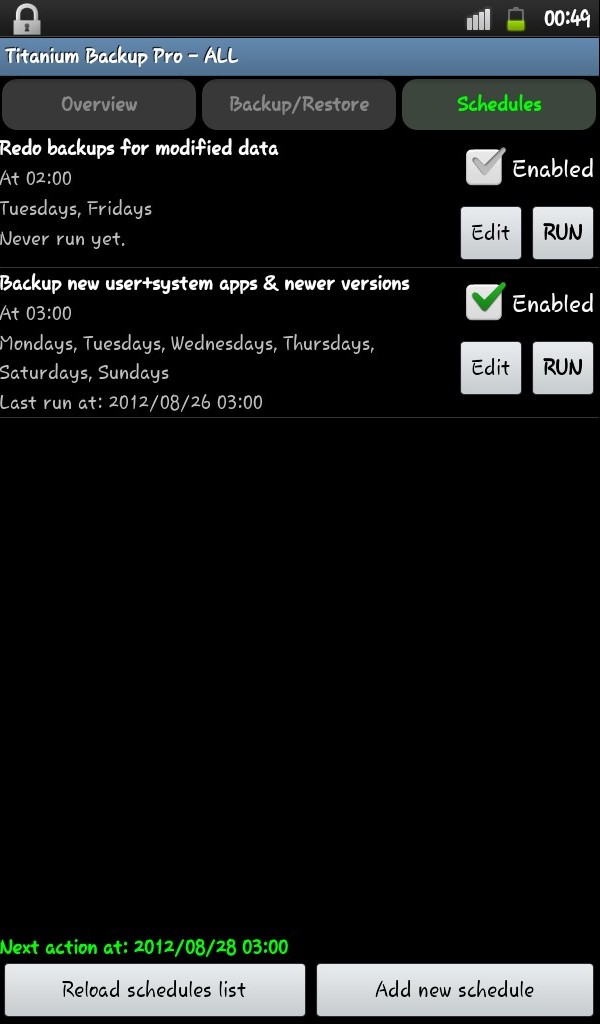
These are the tasks you've scheduled. Of course, if Enabled is unchecked, that schedule temporarily doesn't work. There are also two buttons labeled Run and Edit. The Run button is used to run that backup ahead of time (right now, not at the scheduled time). The Edit button is used to change settings and schedules or delete the schedule. Now let's move on... We want to set up our own schedule so that, for example, on Saturdays, Mondays and Wednesdays at 2 AM the phone automatically backs itself up. (The reason we choose this time is so that a box doesn't pop up while we're using the phone saying wrap it up! I want to make a backup!)
Well. To do this, tap the Add New Schedule button at the bottom right to open a box like the picture below:
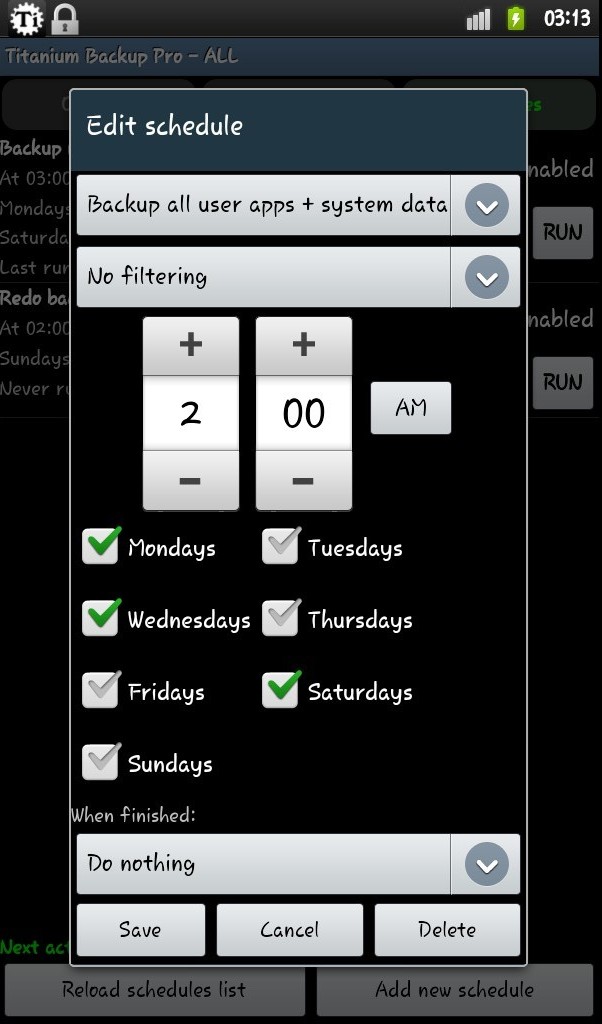
Set the first drop-down list to Backup All User Apps + System Data. Set the time you want... Check the days you want... The last drop-down list has a few options for syncing with a cloud service or rebooting the device, and it's best to leave it on Do Nothing. Now by choosing Save, your backup will run at the scheduled time and you can sleep peacefully at night... I hope you've enjoyed this sweet program, and forgive me for going on so long... I'll answer your questions about this program too; you can let me know through a comment or chat. Good luck...