Enabling Safe Mode in Windows 8
Hi friends, I hope you're well
Surely you've needed to put your Windows into Safe Mode to do something particular with it (like cracking or something else), but as you know, Windows 8 doesn't go into Safe Mode when you press F8 and needs a few small changes.
This post has two tutorials on how to do this; the first one was recommended by our dear friend, Mr. Amir:
Method one:
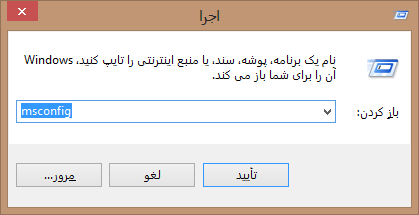
To enable Safe Mode, first open the Run window by pressing the Windows Logo+R keys together, type msconfig in it and press Enter:
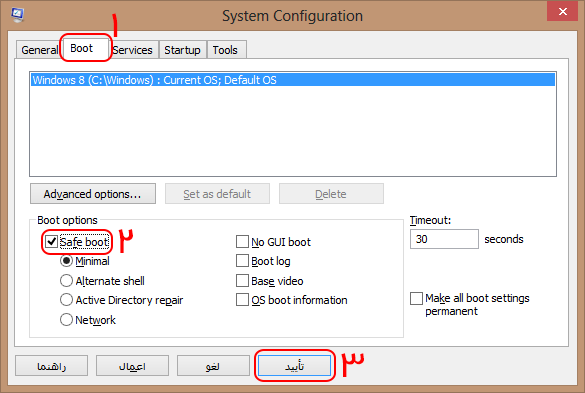
Now the configuration window opens, and by going to the Boot tab, checking SafeBoot and pressing OK, you can go directly into Safe Mode when you restart the system:
We thank dear Mr. Amir for his guidance.
Method two:
To enable Safe Mode in Windows, first press the (Windows logo + X) keys on your keyboard so the special Windows menu appears:
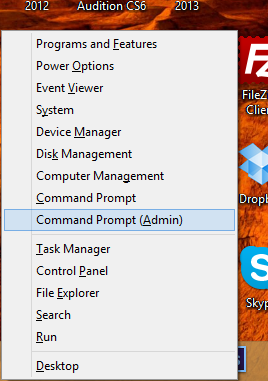
Now click Command Prompt - Admin to run the command window as administrator.
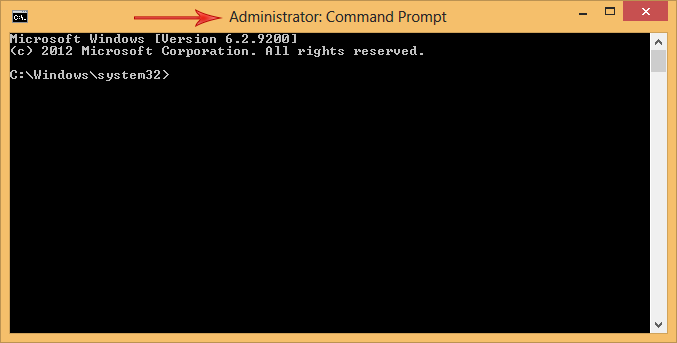
Now, after the prompt:
C:\Windows\System32type the following command and press Enter:
bcdedit /set {default} bootmenupolicy legacyAfter doing this, you'll see it gives a message that the operation was successful:
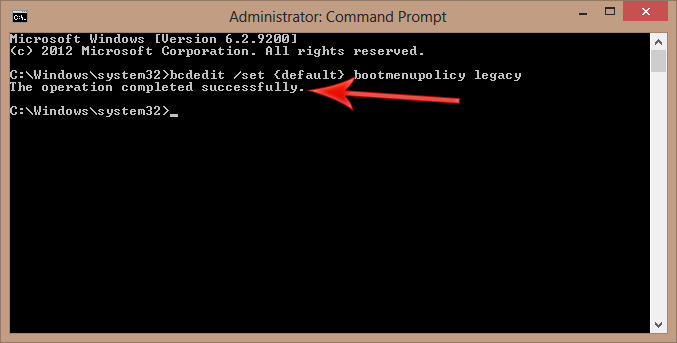
Now your Safe Mode menu is enabled; when you turn on the system, press F8 repeatedly to see it.
Also, to make your computer boot faster, it's recommended to return this option to its original state.
To do this, run the command window as administrator as in the previous steps, but instead of the previous command, type the new command below:
bcdedit /set {default} bootmenupolicy standardAs you can see, a message appears saying the operation was successful:
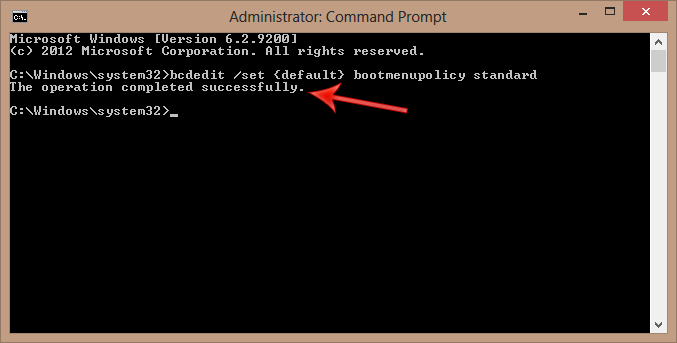
I hope it was useful...