Enabling USB debugging and developer options in Android 4.2 and above
Hi everyone.
As you know, in Android 4.2 and above, USB debugging and "Developer options" are no longer available.
So what should we do to enable them?!
It's very simple. You need to go to About phone and tap "Build Number" seven times quickly.
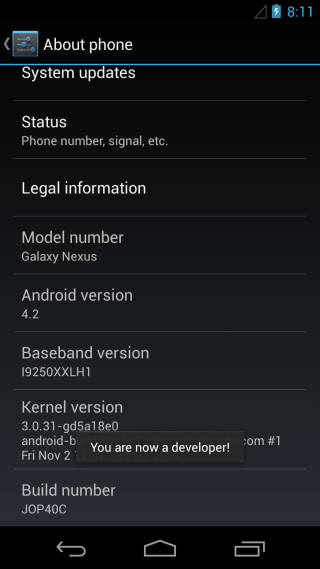
As you can see, the message "You are now a Developer" is shown.
Now go back to the main menu and you'll see that the "Developer options" menu has been added to the settings!
Good luck...
Update, May 2021:
Since many friends had problems connecting a flash drive to their phone, and as you can see there are a great many comments about it, below I've collected a few practical methods that solved our friends' problems.
First, many friends fixed their problem by replacing their OTG adapter, so definitely try that.
Some friends' flash drives were broken, and replacing the flash drive fixed their problem.
Some friends were able to fix this problem using the USB Serial Terminal app.
Others were able to open the flash drive by updating their phone.
Another problem that came up for many friends with Samsung A-series phones was that their phone kept giving a notification that USB was disconnected and then another notification that USB was connected!
They solved this problem in different ways. One friend, Mr. Mehrdad, said the problem was fixed by updating. Another friend, Mr. Mohammad, said that dialing *#0808# and choosing the reboot option fixed his problem. Another friend, Mr. Arash, said the problem was caused by buildup in the USB port, and you need to carefully clean the USB port with a clean toothbrush and a cleaning agent to fix it. Of course, it's better to ask a repair technician to do this for you. There was even a friend, Mr. Ali, who was able to fix this problem by turning off Data Warning!
I hope your problem gets fixed and you can open your flash drive easily.
All the best.